> ## Documentation Index
> Fetch the complete documentation index at: https://docs.youniverse.ai/llms.txt
> Use this file to discover all available pages before exploring further.
# Edit songs
> Target lyrics or time ranges, insert precisely and apply a queue of saved changes.
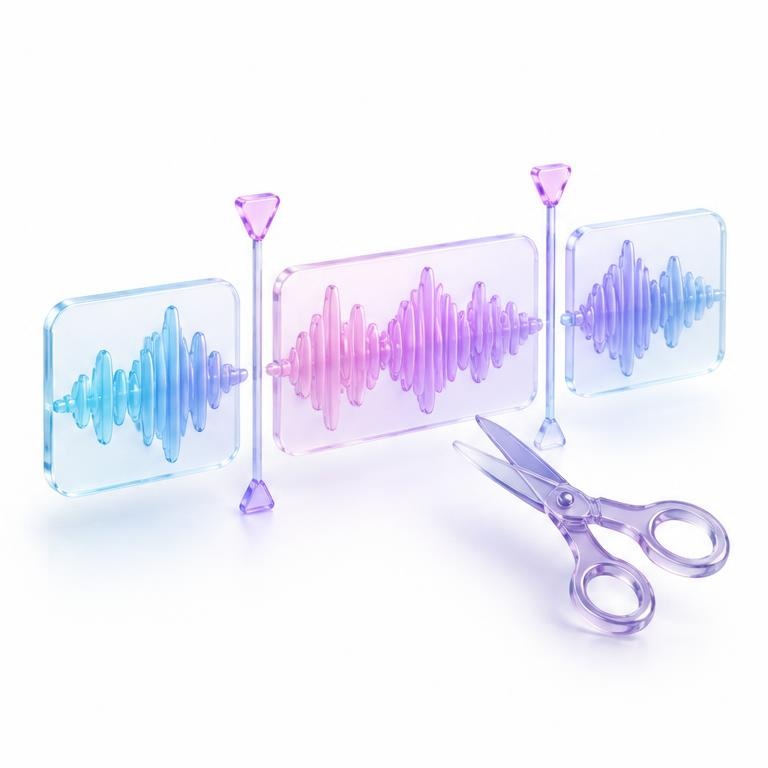 Open an existing track in the song editor or use **Music → Edit**. Work from the source song rather than creating an unrelated replacement.
## Understand the source
**Song Analysis** gives musical context such as BPM, key, genre, mood, energy and sections. Use that context to describe changes that fit the original. Analysis is guidance, not a substitute for listening.
The edit version defaults to the music version saved with the source track. You can switch between compatible versions. Keep preview and apply on the same selected version when comparing results.
## Choose the change
| Change | Purpose |
| - | - |
| Inpaint a range | Replace a targeted section while keeping the surrounding track. |
| Extend | Add more music before, after or at the selected insertion position. |
| Restyle | Change the sound of a range or the whole song. |
| Lyric targeting | Select the words that identify the section you want to change. |
## Target lyrics or exact time
Click a lyric line to select it; shift-click another line to select a range. When words do not identify the right position, use the timeline/time controls.
Insertion supports the end, before a section, after a section or a specific timestamp. Check the chosen position before applying: “add a bridge” is a musical instruction, while its insertion point determines where it goes.
Open an existing track in the song editor or use **Music → Edit**. Work from the source song rather than creating an unrelated replacement.
## Understand the source
**Song Analysis** gives musical context such as BPM, key, genre, mood, energy and sections. Use that context to describe changes that fit the original. Analysis is guidance, not a substitute for listening.
The edit version defaults to the music version saved with the source track. You can switch between compatible versions. Keep preview and apply on the same selected version when comparing results.
## Choose the change
| Change | Purpose |
| - | - |
| Inpaint a range | Replace a targeted section while keeping the surrounding track. |
| Extend | Add more music before, after or at the selected insertion position. |
| Restyle | Change the sound of a range or the whole song. |
| Lyric targeting | Select the words that identify the section you want to change. |
## Target lyrics or exact time
Click a lyric line to select it; shift-click another line to select a range. When words do not identify the right position, use the timeline/time controls.
Insertion supports the end, before a section, after a section or a specific timestamp. Check the chosen position before applying: “add a bridge” is a musical instruction, while its insertion point determines where it goes.
 ## Saved Edits
Stage changes in **Saved Edits** when you want several modifications to the same source. Review the queue and apply the changes together instead of separately regenerating after every instruction.
Listen, inspect its sections and select the affected lyrics or time range.
State both what should change and what should remain: “Restyle this chorus with brighter percussion, preserving the vocal melody.”
Add the modification to Saved Edits. Repeat for other changes and inspect their order and targets.
Apply the batch, listen to the result, and compare it with the original before using the new version.
## Playback while editing
The persistent music player keeps the track accessible while you inspect controls and edits. Use it to compare transitions and verify that a change lands at the intended time.
Yes. Target its lyric or timeline range rather than choosing the entire song.
Use the specific-time insertion option and check the timestamp before applying.
No. Saved Edits stages instructions; applying them creates the edited result.
Edits use credits and Music is Non-ZDR. Keep sensitive information out of lyrics, prompts and reference audio.
This documentation is built and hosted on [Mintlify](https://mintlify.com), a developer documentation platform.
## Saved Edits
Stage changes in **Saved Edits** when you want several modifications to the same source. Review the queue and apply the changes together instead of separately regenerating after every instruction.
Listen, inspect its sections and select the affected lyrics or time range.
State both what should change and what should remain: “Restyle this chorus with brighter percussion, preserving the vocal melody.”
Add the modification to Saved Edits. Repeat for other changes and inspect their order and targets.
Apply the batch, listen to the result, and compare it with the original before using the new version.
## Playback while editing
The persistent music player keeps the track accessible while you inspect controls and edits. Use it to compare transitions and verify that a change lands at the intended time.
Yes. Target its lyric or timeline range rather than choosing the entire song.
Use the specific-time insertion option and check the timestamp before applying.
No. Saved Edits stages instructions; applying them creates the edited result.
Edits use credits and Music is Non-ZDR. Keep sensitive information out of lyrics, prompts and reference audio.
This documentation is built and hosted on [Mintlify](https://mintlify.com), a developer documentation platform.