
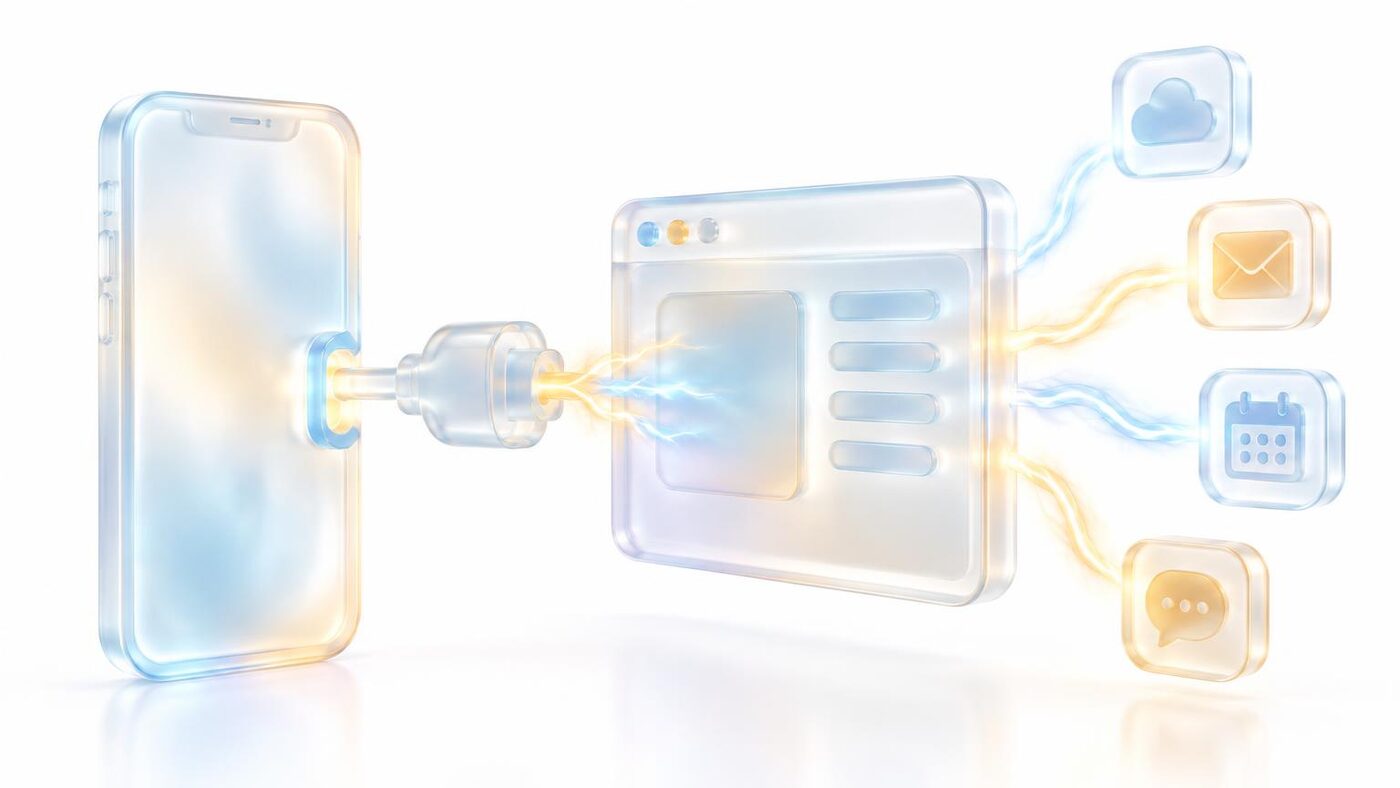
Three ways to connect a service
- Built-in features — database, sign-in, payments, email and storage come included.
- Your own API keys — save them in Setup & keys; they’re encrypted and never shown to your app’s users.
- MCP servers — give the agent live docs and tools from a vendor.
Webhooks
Setup & keys → Webhooks shows incoming events received, lets you send an end-to-end test, and sets up fallback and outgoing relays.Scheduled tasks
Settings → Scheduled tasks lists your app’s recurring jobs — daily digests, syncs, reminders. Viewing is free; creating or changing one is a build.In-app AI
Your app can use AI features of its own (chatbots, summaries, image tools). Settings → In-app AI shows what it uses and costs.Code and GitHub
Settings → Code & integrations lets you connect GitHub, export or import a project, and clone it. Imports, clones and restores run in the background with progress shown. Transferred projects carry a summary of their build history so the agent keeps context.Visual editing
The build engine
Every build runs on Claude Opus at medium reasoning — tuned for quality per credit. Above the composer, a tips strip shows ways to save credits, and alerts appear in chat when your app needs a key or has a new finding.Common questions
Are my API keys safe?
Are my API keys safe?
Yes. They’re encrypted and never shown to your app’s users. Saving a key is free.
Can I take my code elsewhere?
Can I take my code elsewhere?
Yes — export the project or connect GitHub from Settings → Code & integrations.
Does the builder connect to Aura's 1,500+ chat apps?
Does the builder connect to Aura's 1,500+ chat apps?
No. It uses built-in features, your API keys and MCP servers.